Offline browsing instructions allow you to download and view the site offline anywhere and anytime.
The website you are viewing can be downloaded to your tablet or cell phone for offline viewing later. You can use the browser’s built-in features for this purpose.
Here are instructions on how to do it for the most well-known and well-liked browsers:
Offline browsing instructions for Google Chrome browser (Android/iOS)
Open Page: Launch Chrome and navigate to the page you want to save.
Options Menu: Click the three dots in the lower right corner to open the options menu.
Save Offline Page: Select “Add to Reading List” or “Download Page for Later” (option name may vary depending on browser version).
Access Saved Pages: To access saved pages, open the Chrome menu and then select “To Read.” Here you will find all the pages you have saved for offline viewing.


Offline browsing instructions for Safari browser (iOS)
Open Page: Launch Safari and navigate to the page you want to save.
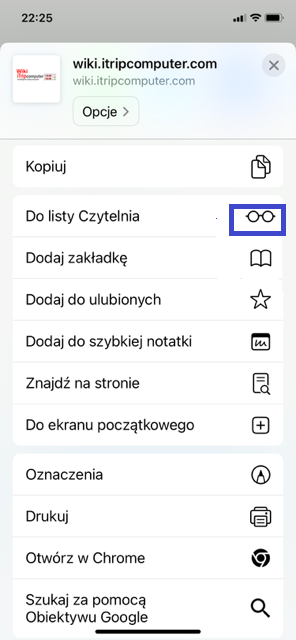
Share Page: Click the share icon (rectangle with an upward arrow).
Add to Reading List: Select “Add to Reading List.” Safari will save the page so it can be viewed offline.



Offline browsing instructions for Mozilla Firefox browser (Android/iOS)
Open Page: Launch Firefox and navigate to the page you want to save.
Options Menu: Click the three dashes in the lower right corner to open the options menu.
Save to Reading: Select the “Reading” option to save a page for later reading, which you can view offline later.
Access to Saved Files: You can find saved files on the Reading List marked with a book icon, in your local download folder or in the file management application.


Offline browsing instructions for the Edge browser (Android/iOS)
Open Page: Launch Edge and navigate to the page you want to save.
Options Menu: Click the three dashes in the lower right corner to open the options menu.
Share the page: Select “Share” to save the page as a card that you can view offline later.
Access to Saved Files: You can find saved files in the Card’s local folder or in a file management application.